This is still in beta and not fully rolled out.
If you're interested in experimenting, feel free to build a node and help make the docs better!
How to setup Modem73 on Debian.
This assumes that you have already have a running RNS instance with config under ~/.reticulum/.
- Fetch and install the latest release of Modem73 for your platform from github
- Fetch and install the latest release of Modem73interface from github and save it under
~/.reticulum/interfaces/. - Edit
~/.reticulum/config/and add the following lines to the[interfaces]section.
  [[MODEM73]]
    mode = internal
    type = Modem73Interface
    enabled = yes
    target_host = 127.0.0.1
    target_port = 8001
    control_host = 127.0.0.1
    control_port = 8073
- If you have
enable_transport = Trueset, check your other interface modes to sure they are setup in a way you wont flood the modem73 interface. If you just want to get it done, set your TCP interfaces tomode = boundaryand your internal interfaces tomode = internal. If you want to experiment with other modes, give the announce simulator a try. - Start modem73 in a terminal. The following is the minimal config.
- Click on
CONFIG.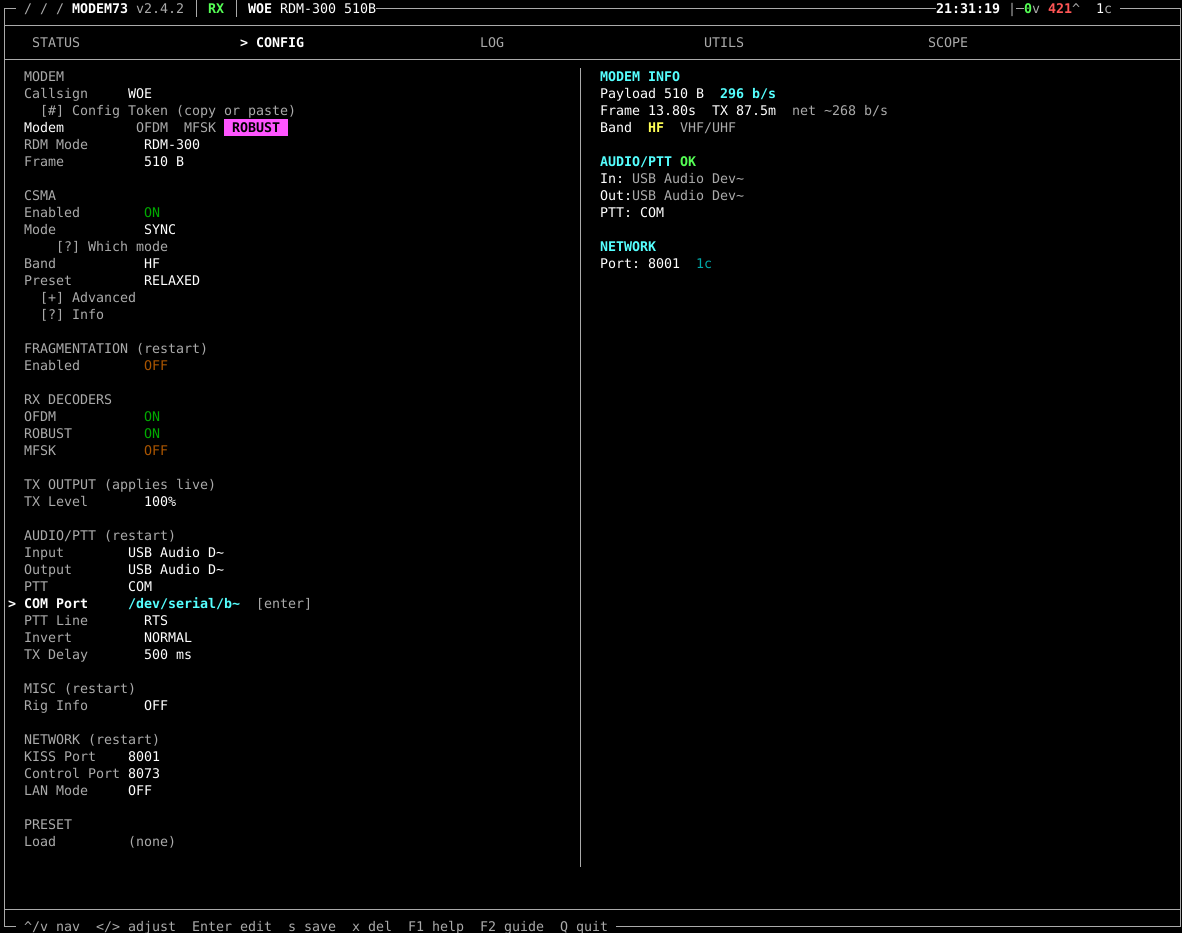
- Change callsign to something to distinguish yourself while testing. Once you are running you can use N0CALL.
- Pick your mode. For HF we are using either
ROBUSTRDM300orRDM700. For UHF/VHF we are usingQAM40962/3. - Enable CSMA,
MODEshould beSYNC.PRESETshould beRELAXED. - RX Decoders - it will decode any mode that is not disabled. Setting the above only changes what it transmits. Disable the MFSK decoder - it will give a lot of false positives in your logs/
UTILSpage. - Setup your audio interface and PTT. For me it is either the digirig
USB AUDIO DEVICEor theAIOCdevice for input and output. - PTT for DigiRig and AIOC use
PTT:COM, select the device to use underCOM PORT,PTT LINEisRTS,NORMALorNOT INVERTED. StockTX DELAYof 500ms has worked for my radios. - Click
QUITto save, then restart. Setup another radio with the above or get a buddy to connect with on frequency - both of you should go to theUTILSpage ofModem73and send some test messages, either1. Send Test Pattern, or8. Compose Message. If you're unsure of what modes will work for you, go toTESTINGand select the modes you want to test usingAuto-Alternate. It will cycle through the selected modes and show decodes on the other side under[ RX PERFORMANCE ]. For RNS use, you will want any mode that is around 300 bps or faster. 500 bps or faster if you want to account for retransmissions caused by static crashes or other noise. Below that and you will have to go into the apps code and make timeout changes.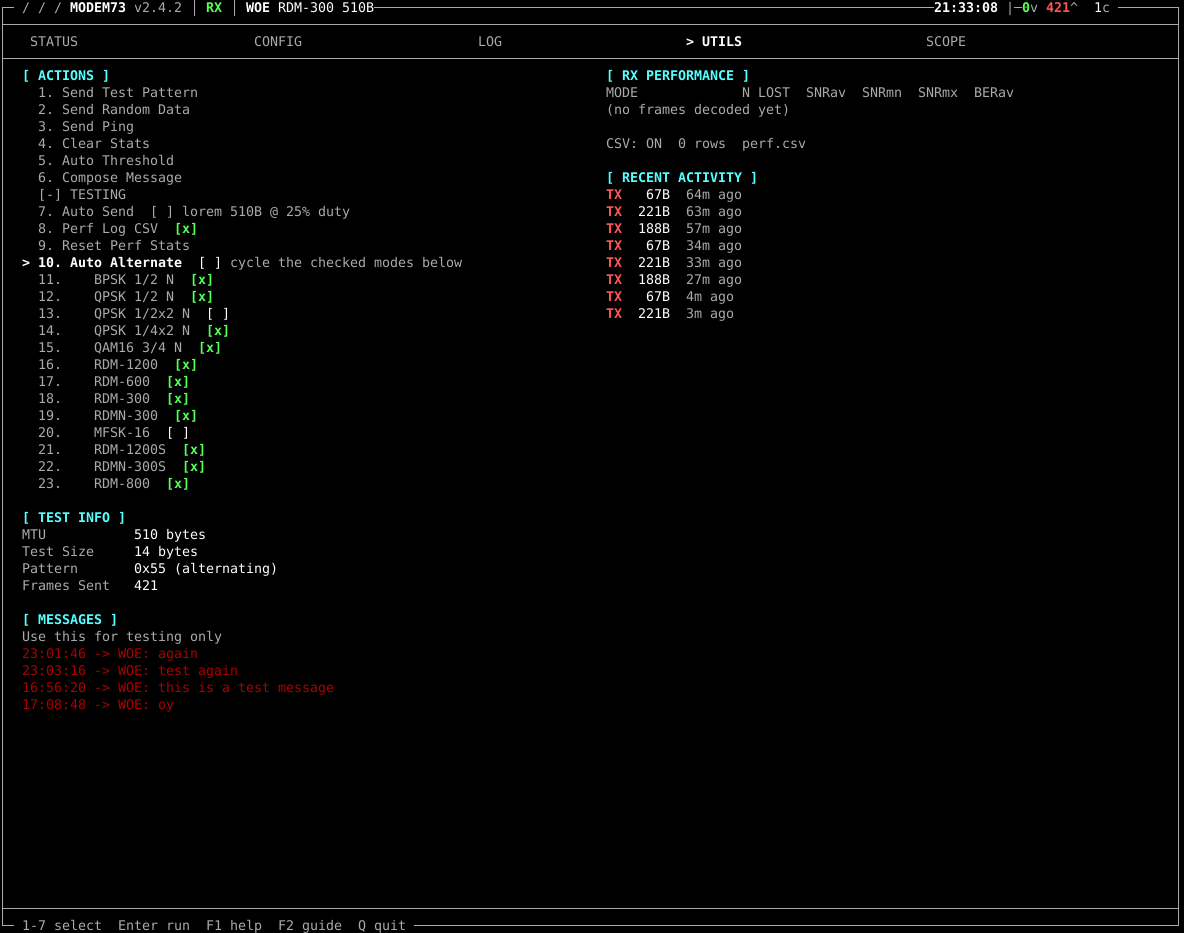
- Once you are happy with your modem settings, you are now ready to flip the switch on RNS!
- Restart RNS to pick up the changes. If using our prev docs, use
sudo systemctl restart rnsd - Send an announce! Does your other test radio or buddy on the other side see your announce? If so, Victory! If not, hit me (yNos) up on Signal or Discord so we can troubleshoot and fix these docs!
How to setup Modem73 on android using ThatSFguy's Reticulum-Mobile-app via Obtainium (step 1)
With the little bit of testing I've done so far, the AIOC - All In One Cable and DigiRig are the only interfaces I've gotten to work.
- Install obtainium.
- Open Obtainium
- Click
+ Addin the bottom right. Warning: the first time you install using Obtainium, it will ask you if you want to enable this software source. ClickYes/OKor toggle the switch that allows this source. - To install the Reticulum app, paste
https://github.com/thatSFguy/reticulum-mobile-app/into the app source URL. Click+next to the text entry box. on the next screen, click install. ClickINSTALLagain if prompted. - To install Modem73, paste
https://github.com/RFnexus/modem73-androidinto the app source URL. Click+next to the text entry box. on the next screen, click install. ClickINSTALLagain if prompted. - Plug in your
AIOCbefore opening Modem73 - Open Modem73. Use Follow Debian Setup section 4.
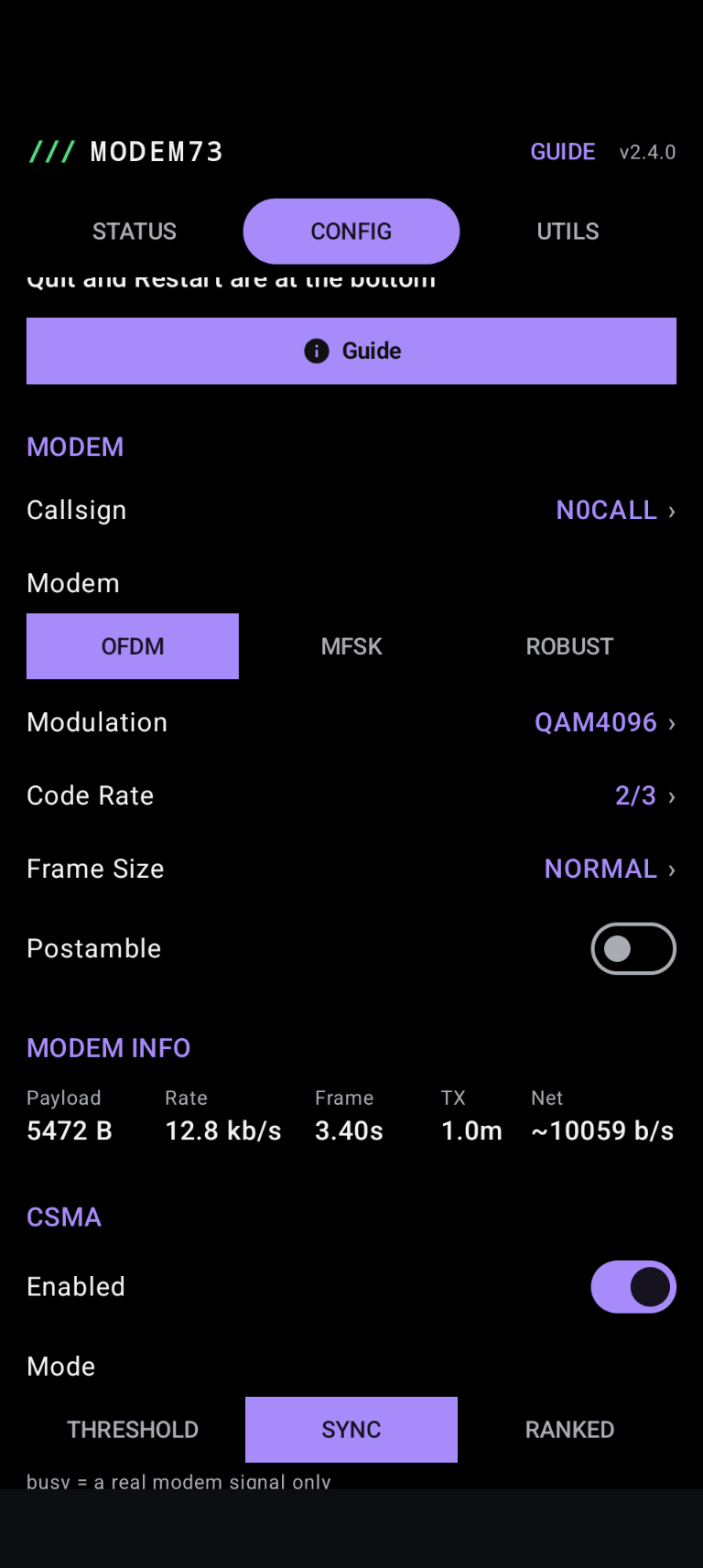
- Open
Reticulum, go toSettings,Transports, and toggleKISS TNC over TCP. If you havent changed the network options in Modme73, you should be fine with all the defaults.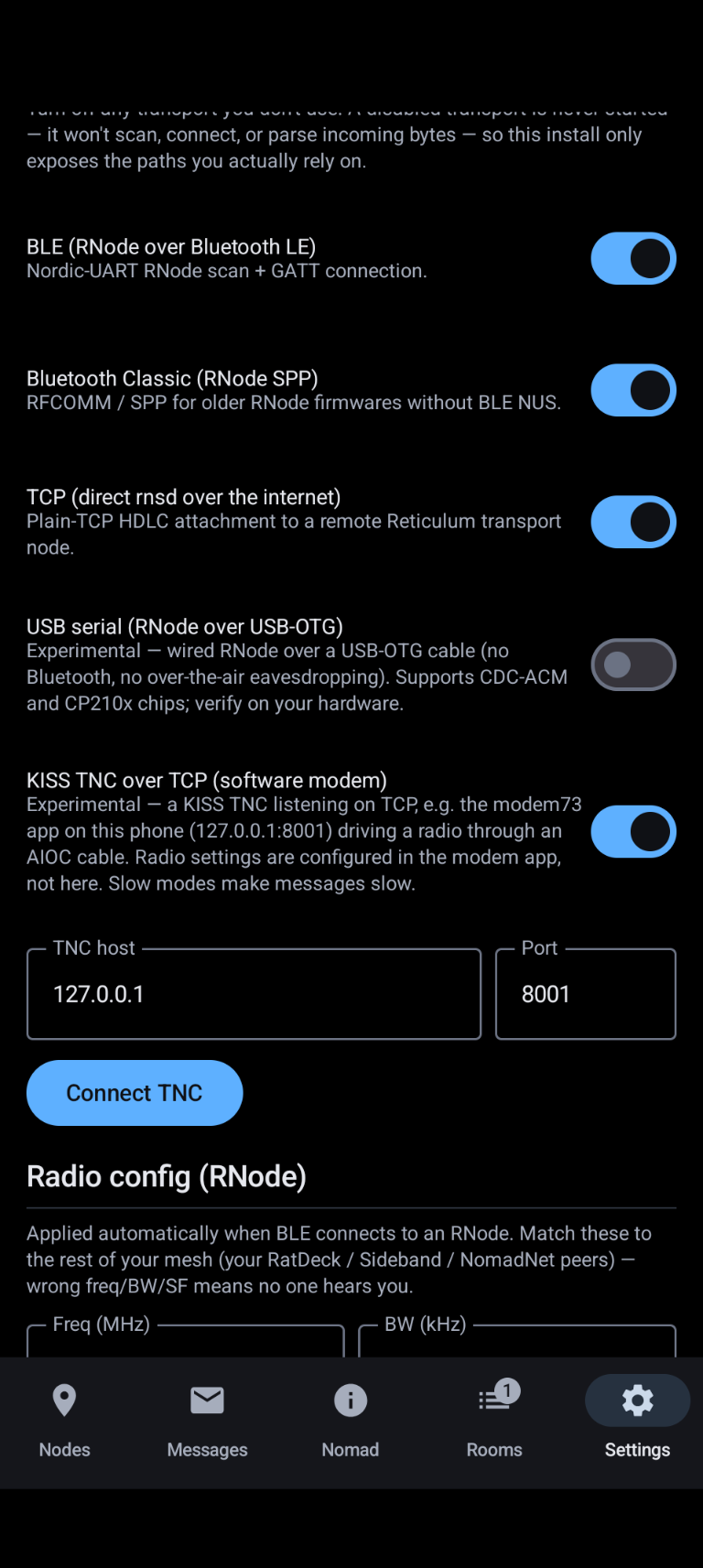
- Send an announce! Does your other test radio or buddy on the other side see your announce? If so, Victory! If not, hit me (yNos) up on Signal or Discord so we can troubleshoot and fix these docs!
What radios/frequencies are we using Modem73 on?
Currently there are a couple places we are experimenting, Part 90 commercial channels and part 15 ISM.
- For Part 90, a MichMesh member is allowing the use of his unused itinerant frequencies. On UHF/High Band VHF, we are using a few DM1701s with an AIOC cable. There are plans to explore Low Band VHF as there are a few channels allocated down there, but we are still hunting for part 90 compliant gear.
- Part 15 HF bands, 6.789 mHz USB and 13.556 mHz USB. 6.798 gives great daytime local coverage and longer distance coverage at night. 13.556 gives national and international coverage during the day and pretty much dries up at night.
- Part 15 Caveats: Power! How much power can we run down here? There are a few different interpretations I've read online. Some say 1w , some say 3mw isotropic (free space, no ground losses, spherical cows, etc). From looking at FCC §15.225, we cant exceed 15,848 microvolts/meter at 30 meters. What does that mean? I wasnt sure, so I found my old wireless smart watch charger and tested what it put out. Here's an excerpt from my notes.
Problem 1:
Knowing how much power we are allowed to output is a pain because they define it by energy
density per meter square at 30m distance from the center of the radiator rather than watts ierp.

Problem 2:
I dont have a calibrated field strength meter.

Solution? Let's test a device that has passed FCC certification to see what it puts out,
then make an oscillator with a variable output power amp that we can dial up  the output
to match the known and take a measurement of that.

I may not have a calibrated FSM, but I do have a spectrum analyzer, a lora rubber duck
antenna, and pile of attenuators.

Let's hang the charger on a piece of clothes line at about 10 feet up, then take a
measurement from 30m out.

I then made an adjustable output power oscillator (si5351 and a few mosfets,
adjusting bias voltage) and sent a cw tone through a qrp wattmeter, into a
resonant half wave antenna at about 10 feet off the ground. The power needed
to have a similar signal is about 250-300mw.
"But that's not what the equations say!" - This test was done in a field up against a forested area, near a river, with the water table being about 6 feet down and the soil being 4ish inches of black soil covering mostly river sand/gravel with a high iron ore content. Insert joke about spherical cows in a vaccum here.
Part 15 compatible radios.
These will work on the frequency, but may need some modifications to meet power requirements.
- My favorite is the LARCSet. All surface mount parts are done for you, you just need to add in the bigger parts. When building, add 3 extra wraps to the VFO toroid and you should be good to go. Use another radio to verify you are on the correct frequency. You can also use a digital vfo if you dont want to use the analog one. Tuning the power output is adjusted via a potentiometer on board. Set it to whatever power you need for your antenna. You can use a DigiRig (linked above) for the audio/PTT interface.
- My second favorite is the "white button" style uSDX as it has ports on the back to use an AIOC. You can adjust the power output by dialing menu option 8.2 down till you meet the power reqs for your antenna/environment. No soldering required.
- Same with the
[Tr]uSDX, only you cant use the AIOC w/o making a custom cable or adapter. Some have had luck with the Audio over CAT, but I'm not one of them. - I know of one person using a sBITx, but I cant really speak to what needs to be done to use it.
- I'd love to see the PebbleHF on this list, hopefully we can order the 40m version soon. Let me know what radio you use, we can add it to the list.